After completing this lesson, you’ll be able to:
In this lesson, you will:
After completing this lesson, you’ll be able to:
In this lesson, you will:
FME Workbench is the primary FME Form application for translating and transforming data.
FME Flow Hosted is Safe Software's hosted deployment option for FME Flow. A pay-as-you-go web-based application to help you automate your FME Form workspaces without the hardware of FME Flow.
FME Realize is an iOS app that extends the power of the FME platform to spatial computing. FME Realize enables you to build Augmented Reality (AR) workflows using FME, enabling field teams to visualize and interact with data.
A coordinate system uses one or more numbers, or coordinates, to uniquely determine the position of a point or other elements on the surface of the Earth.
Workspaces are files (ending in .fmw) that you create in FME Workbench that define all of the parameters of your data integration workflow.
If you have a background using other data integration tools, workspaces are similar to:
Note: these are not called “workbenches,” which is a common misconception.
The building blocks used in a workflow in FME Workbench. Each transformer has a specific function. They can be used alone in a simple workspace or combined to create complex processes.
If you have a background using other data integration tools, transformers are similar to:
Note: conceptually, transformers are operations or processing steps.
A schema is a formal definition of a dataset’s structure, including table names, attribute names, and attribute data types (e.g., text, integer, float). With spatial data, the geometry type (point, line, polygon, etc.) is also considered part of the schema. You might also hear this referred to as a data model.
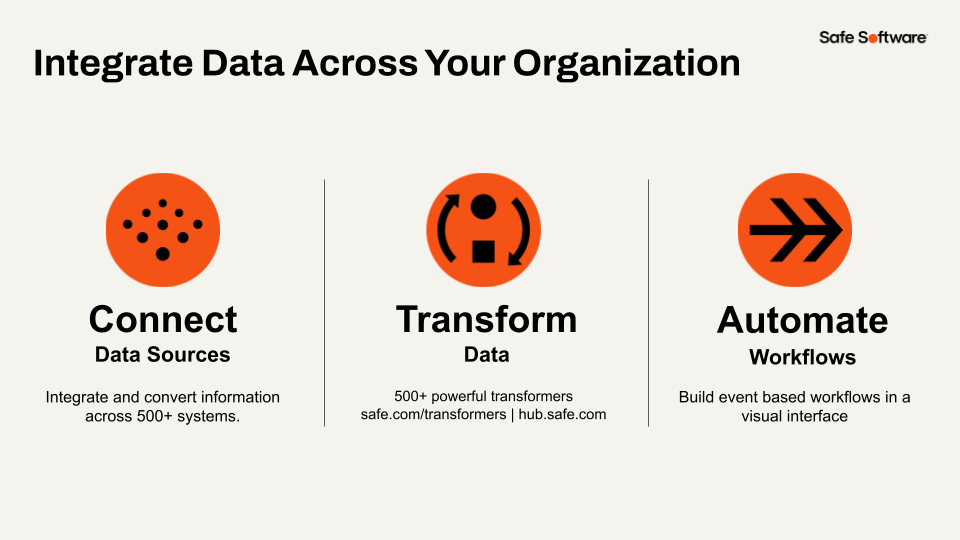
You will learn the FME essentials throughout this learning path by completing hands-on problem-solving exercises. You will learn how FME helps you integrate data through three phases:
By the end of the learning path, you will be ready to author and deploy your own FME data integration workflows.
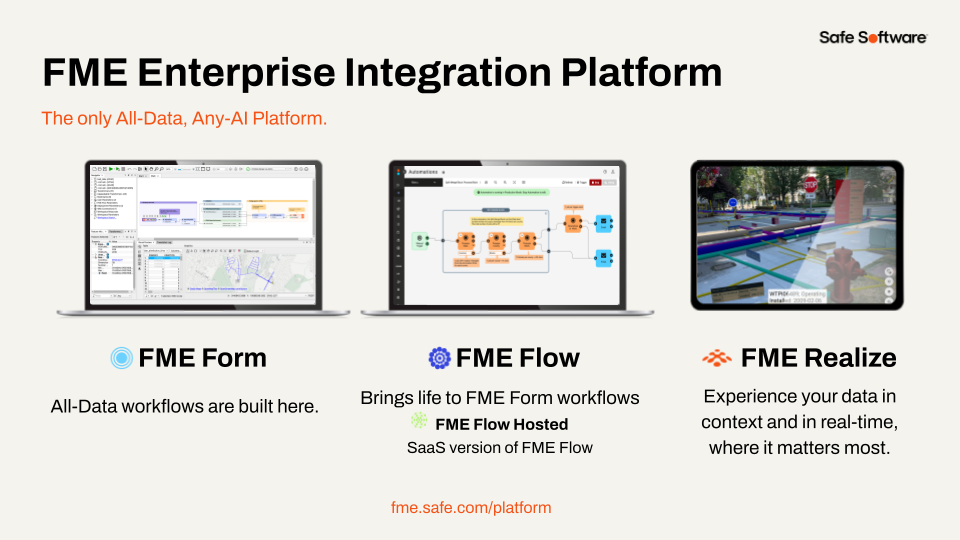
The FME platform comprises several products that you use together to achieve enterprise integration.
 FME Form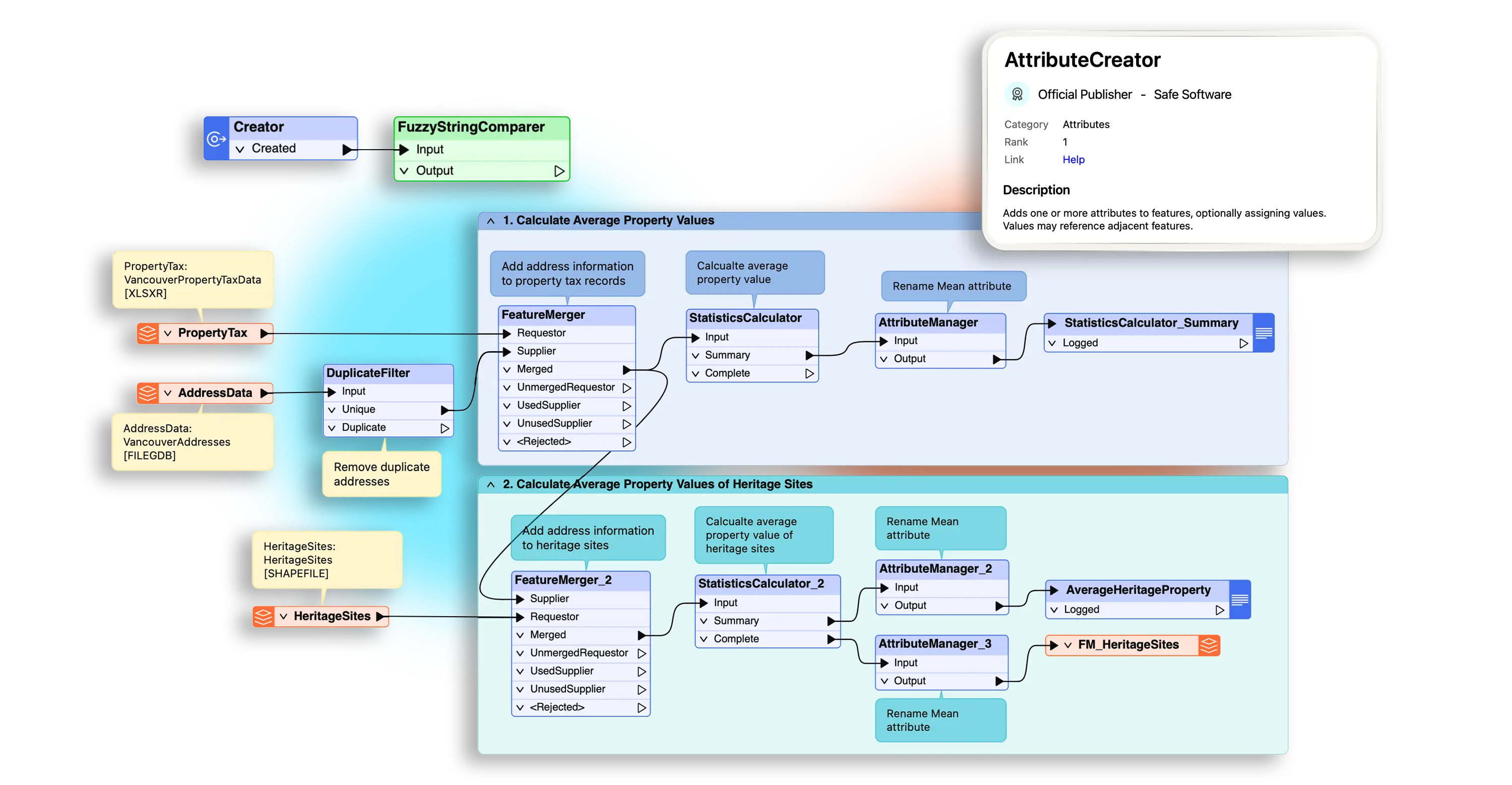
 FME Flow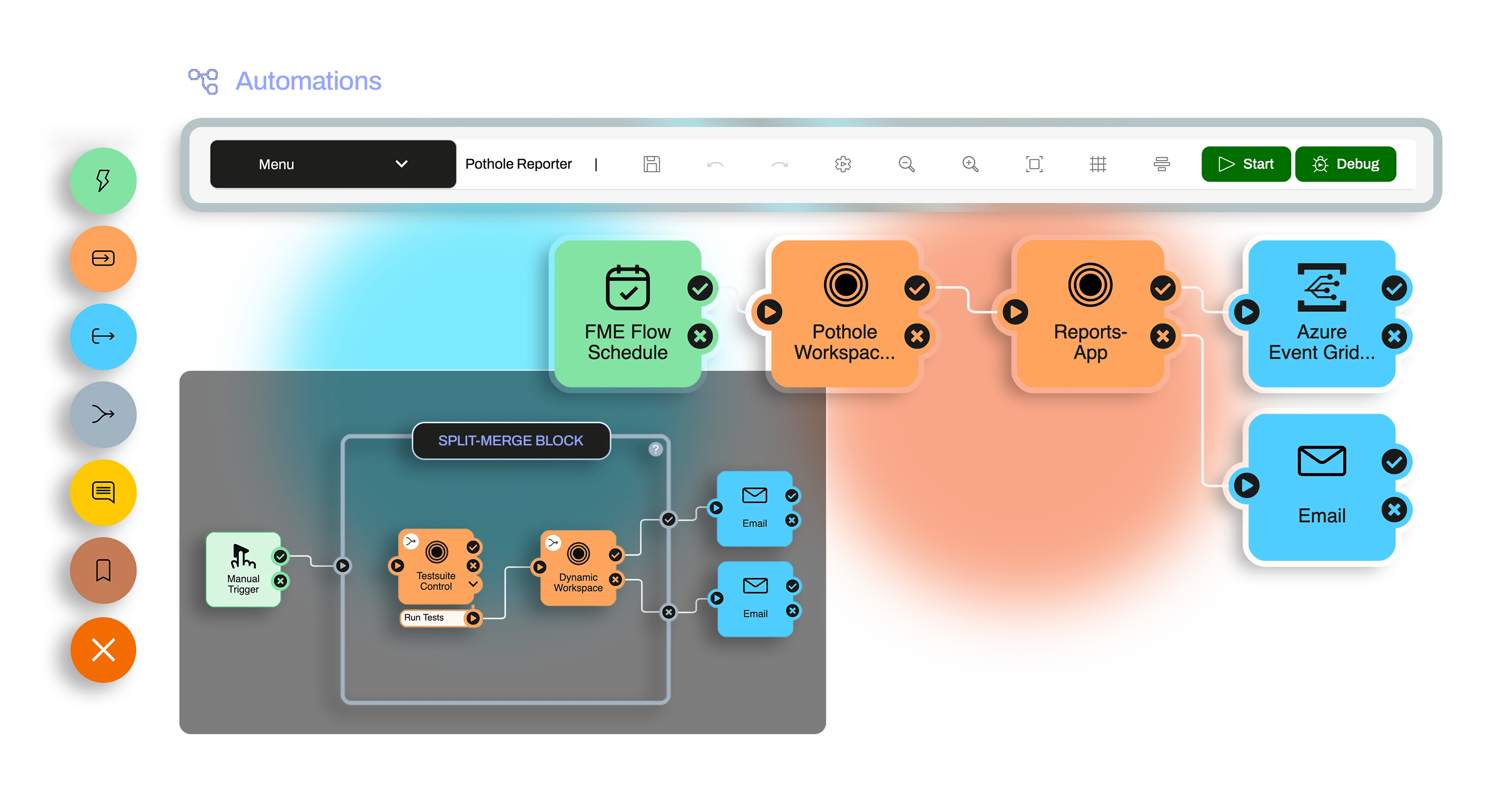
 FME Flow Hosted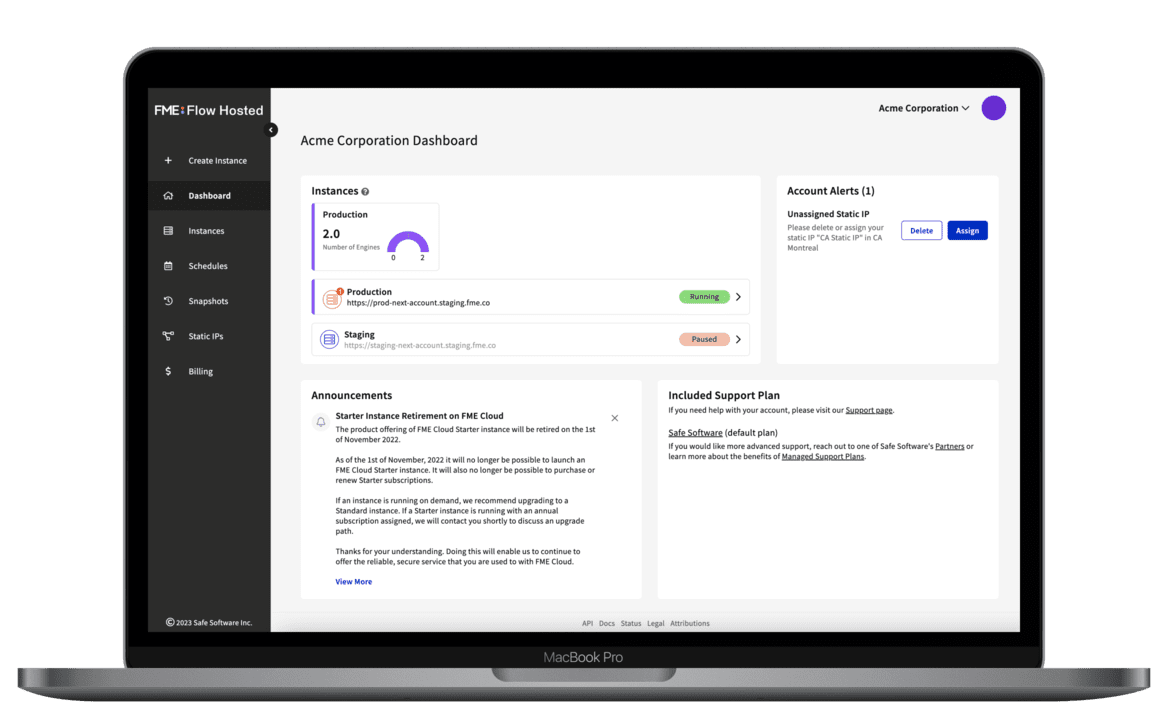
 FME Realize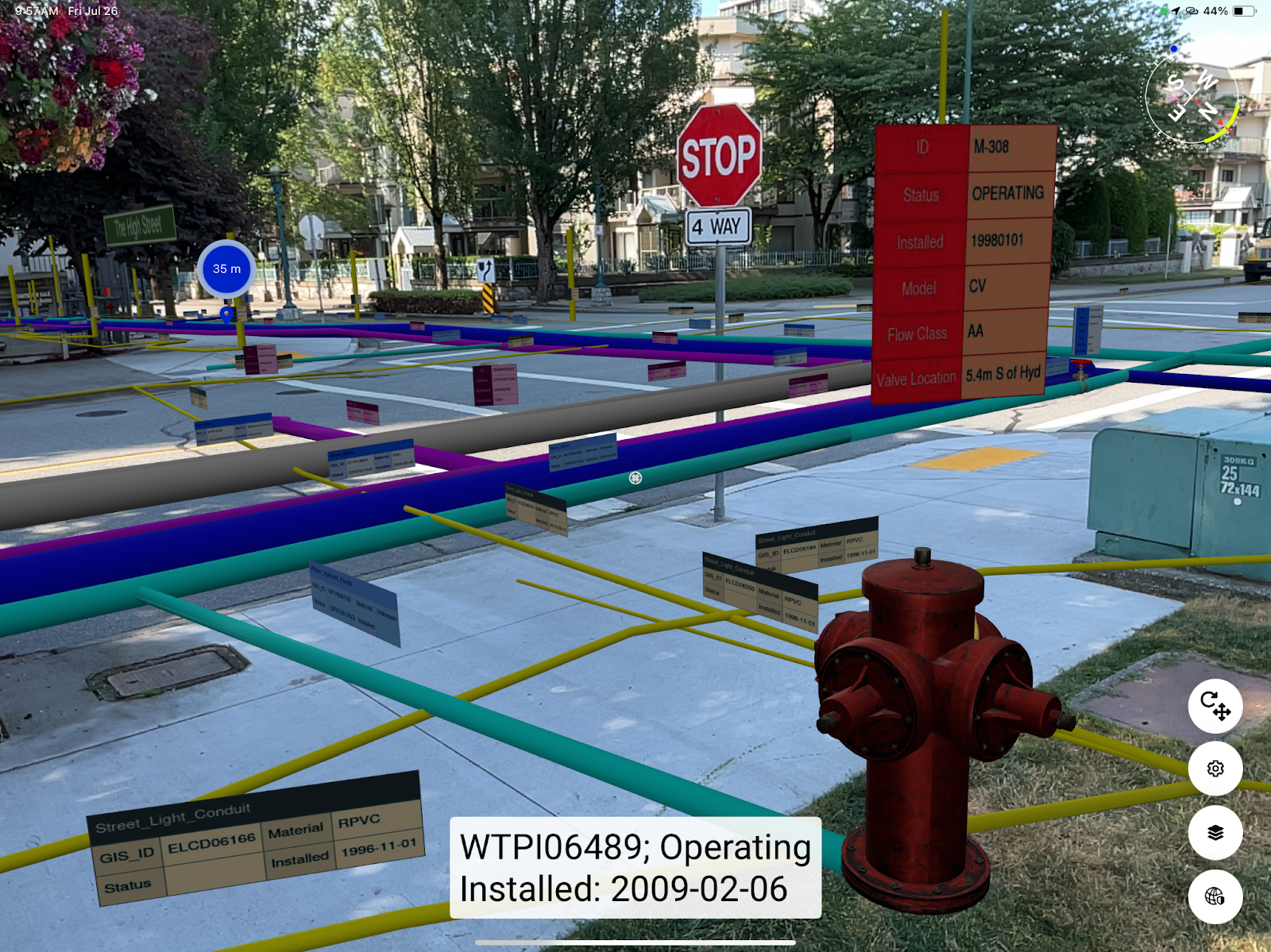

Sven works as a Planning Analyst for a city’s economic development department. He has been given an Excel spreadsheet containing the point locations of businesses and needs to load it into an Esri geodatabase. He will use this business data to create guides for each city neighborhood to provide to residents, prospective business owners, and tourists.
Sven is starting with an Excel workbook (BusinessOwners.xlsx) with a single sheet. Each row is a separate business and contains information about the business, including the owner's name, the company's name, the business license number, and the location of the business’s primary address. He wants to keep all this information in his new geodatabase.
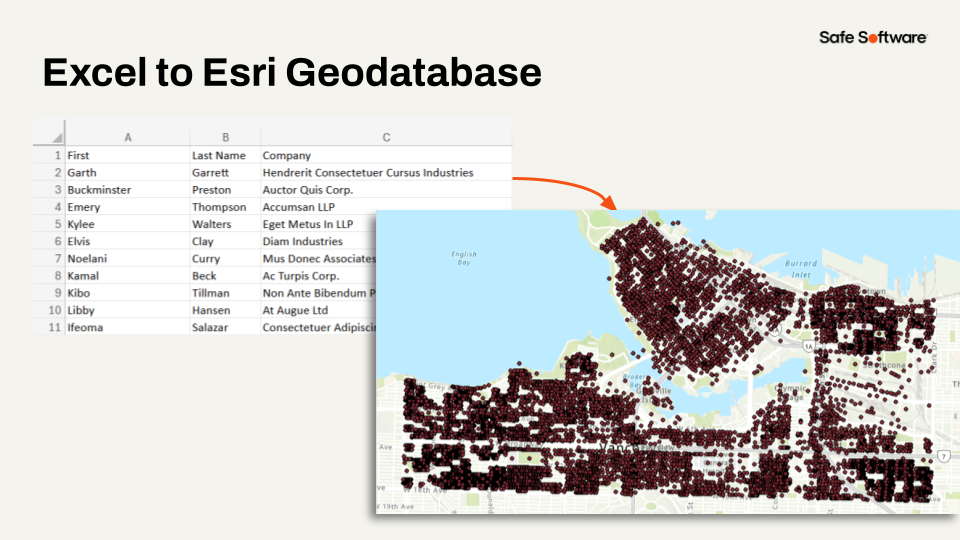
Let’s find out how he can solve this data integration problem with FME through the steps of connect, transform, and automate.
Sven uses the desktop authoring software FME Workbench, the primary application in FME Form, to build a workspace that will integrate his data. Workspaces are the definition of a data integration workflow.
He adds objects representing the source and destination datasets to the visual drag-and-drop interface in FME Workbench:

He doesn’t have to write a single line of code.
Next, Sven adds objects called transformers to his workspace to change his data to meet the destination requirements. He uses transformers to:
First, he adds an AttributeManager transformer to ensure his attributes meet the requirements of the geodatabase:
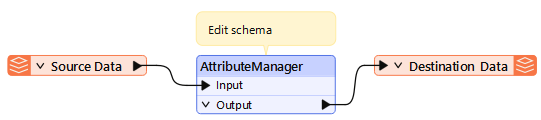
He adds more transformers one-by-one until his workspace looks like this:

He runs his workspace and FME reads the data from the Excel workbook, transforms it, and writes it to the Esri geodatabase.
If Sven only needed to integrate this data once, he would just run his workspace in FME Workbench, and he’s done. However, he needs to send his data to a colleague regularly, so he publishes his workspace to FME Flow.
With FME Flow, he builds an Automation to run his workspace once a month. If the workspace succeeds, FME Flow emails the results to his colleague. If it fails, FME Flow emails Sven to alert him so he can investigate.
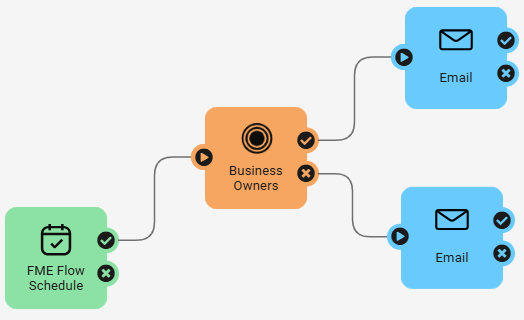
Now Sven's colleague will stay up-to-date without needing to bother him.
Over the rest of this course, we'll work through these steps to help Sven build this workspace and automation.
FME Workbench is the primary FME Form application for translating and transforming data.
FME Flow Hosted is Safe Software's hosted deployment option for FME Flow. A pay-as-you-go web-based application to help you automate your FME Form workspaces without the hardware of FME Flow.
FME Realize is an iOS app that extends the power of the FME platform to spatial computing. FME Realize enables you to build Augmented Reality (AR) workflows using FME, enabling field teams to visualize and interact with data.
A coordinate system uses one or more numbers, or coordinates, to uniquely determine the position of a point or other elements on the surface of the Earth.
Workspaces are files (ending in .fmw) that you create in FME Workbench that define all of the parameters of your data integration workflow.
If you have a background using other data integration tools, workspaces are similar to:
Note: these are not called “workbenches,” which is a common misconception.
The building blocks used in a workflow in FME Workbench. Each transformer has a specific function. They can be used alone in a simple workspace or combined to create complex processes.
If you have a background using other data integration tools, transformers are similar to:
Note: conceptually, transformers are operations or processing steps.
A schema is a formal definition of a dataset’s structure, including table names, attribute names, and attribute data types (e.g., text, integer, float). With spatial data, the geometry type (point, line, polygon, etc.) is also considered part of the schema. You might also hear this referred to as a data model.
You will learn the FME essentials throughout this learning path by completing hands-on problem-solving exercises. You will learn how FME helps you integrate data through three phases:
By the end of the learning path, you will be ready to author and deploy your own FME data integration workflows.
The FME platform comprises several products that you use together to achieve enterprise integration.
FME Form FME Flow FME Flow Hosted FME Realize
Sven works as a Planning Analyst for a city’s economic development department. He has been given an Excel spreadsheet containing the point locations of businesses and needs to load it into an Esri geodatabase. He will use this business data to create guides for each city neighborhood to provide to residents, prospective business owners, and tourists.
Sven is starting with an Excel workbook (BusinessOwners.xlsx) with a single sheet. Each row is a separate business and contains information about the business, including the owner's name, the company's name, the business license number, and the location of the business’s primary address. He wants to keep all this information in his new geodatabase.
Let’s find out how he can solve this data integration problem with FME through the steps of connect, transform, and automate.
Sven uses the desktop authoring software FME Workbench, the primary application in FME Form, to build a workspace that will integrate his data. Workspaces are the definition of a data integration workflow.
He adds objects representing the source and destination datasets to the visual drag-and-drop interface in FME Workbench:
He doesn’t have to write a single line of code.
Next, Sven adds objects called transformers to his workspace to change his data to meet the destination requirements. He uses transformers to:
First, he adds an AttributeManager transformer to ensure his attributes meet the requirements of the geodatabase:
He adds more transformers one-by-one until his workspace looks like this:
He runs his workspace and FME reads the data from the Excel workbook, transforms it, and writes it to the Esri geodatabase.
If Sven only needed to integrate this data once, he would just run his workspace in FME Workbench, and he’s done. However, he needs to send his data to a colleague regularly, so he publishes his workspace to FME Flow.
With FME Flow, he builds an Automation to run his workspace once a month. If the workspace succeeds, FME Flow emails the results to his colleague. If it fails, FME Flow emails Sven to alert him so he can investigate.
Now Sven's colleague will stay up-to-date without needing to bother him.
Over the rest of this course, we'll work through these steps to help Sven build this workspace and automation.